 "
"
Access a secure external collaboration (extranet) with your company’s intranet






TL;DR
- An intranet is a private network that employees use with familiar social technologies.
- An extranet is a custom-built platform that remains secure while allowing authorized external access.
- Both the intranet and extranet can work together, and most organizations adopt a combined approach.
- You can enable extranet access with a company intranet via different methods as follows:
- VPN
- Cloud-based solutions
- Dedicated extranet portals
- Reverse proxy solutions
- Remote desktop services/Virtual desktop infrastructure
- API-based integration
- Multipurpose intranet/extranet theme like Woffice
- You can practice following the security measures while building an extranet with Woffice:
- Implement strong authentication mechanisms
- Role-based access controls
- Data encryption and secure communications
- Regular updates and patch management
- Comprehensive security monitoring
- Secure backup and disaster recovery
- Network and server security
- Compliance and regulatory requirements
- Third-party integration security
- Mobile and remote access security
Access a secure external collaboration (extranet) with your company’s intranet
You might express surprise over the broad behavioural upheaval in work models that happened post-pandemic. Stanford University conducted a data study in 2020, which discovered that remote workers have 5% more productivity than employees working in a physical workplace. This productivity has increased to 9% by the spring of 2022 after organizations became more familiar with remote work best practices.
The data is either directly or indirectly setting the foundation for secure, collaborative workspaces, such as an intranet or extranet, to facilitate better employee communication. Today’s businesses aren’t confined to traditional office spaces anymore. Remote teams, global operations, and complex supply chains have restructured business systems. While intranets have been in place for a long time, the growing need to combine them with the forces of a controlled external communication can’t be overlooked.
In this blog, we’ll learn a practical method of building a multipurpose platform that includes both the intranet and extranet capabilities. So, if you’re looking forward to accessing an external network within your company intranet (not your existing intranet, though, unless it’s created using Woffice!), this will be your go-to guide.
Defining external network access in a modern company intranet
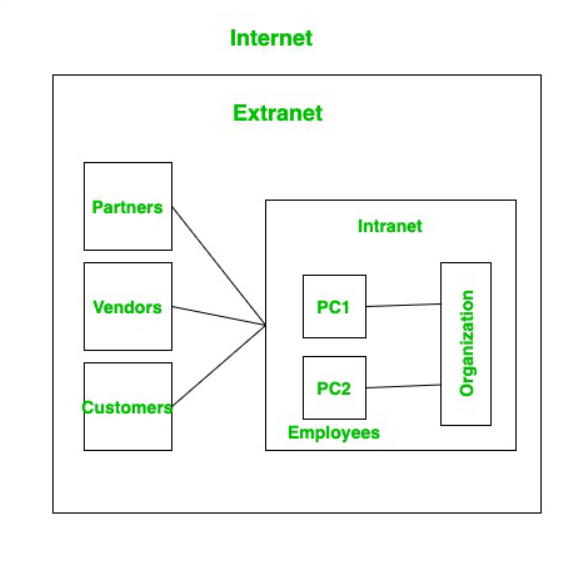
Organically, the extranet acts as an extension of an intranet. Both the intranet and extranet can work together, and most organizations are also adopting the combined approach as their needs grow.
A modern intranet is two-way communication-friendly, which also means it doesn’t promote any kind of hierarchy where only top leaders can collaborate and share information. It is built with a mobile-first approach, and can also work without VPNs. And, if we extend this basic setup of an intranet to include outsider access, we’ll get a fully functional extranet.
Where the intranet is a private, internal network that employees use with familiar social technologies, the extranet is a custom-built platform on top of an intranet, which remains secure and controlled, allowing only authorized external users to collaborate for specific purposes.
Here’s why an extranet with an intranet makes sense for your business:
- Interacting with an extranet means your customers are interacting with an extension of your brand to achieve certain business goals.
- It allows targeted communication where a particular message or information can be shared with all extranet members in a single view.
- Extranets automate processes by creating transparent workflows that all external users can access, manage, and monitor in real-time.
- Users can also initiate processes themselves (like supplier registration, order requests, or employee onboarding), with all completed processes stored securely in one accessible location for both parties.
- It allows external users to actively participate in discussions, leading to more successful business outcomes.
Different methods for enabling external access
There are various ways to achieve extranet functionalities within a company intranet, as defined below. However, some of the methods aren’t feasible to squeeze the full potential of an extranet. Scroll below to learn what’s the best, practical, and economical way to build an extranet with an intranet.
Method 1: Virtual private network (VPN)
Best for: Employee remote access rather than true extranet collaboration
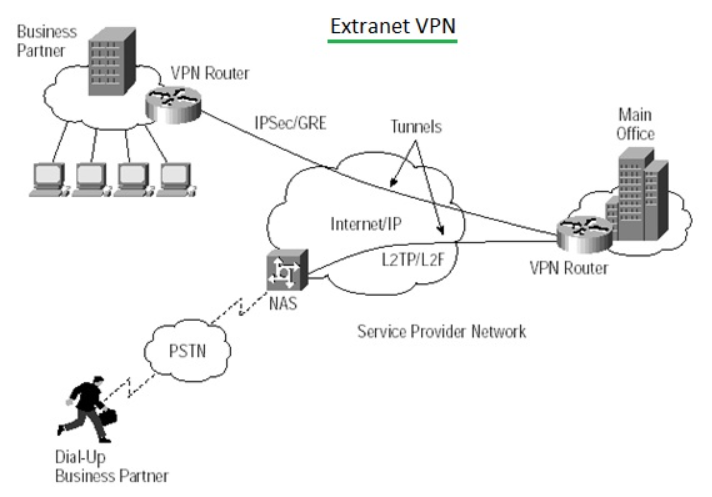
You can create an encrypted tunnel using VPN between the external users and the company’s internal network. The process works by installing a VPN client software, authenticating it with the credentials, and gaining access to internal systems as if they were on-site.
Pros
- Strong security
- Full network access
- Works with existing infrastructure
Cons
- Complex setup
- Requires IT support
- Can be slow
- Poor user experience
- Not ideal for non-employees
Method 2: Cloud-based intranets (SaaS)
Best for: Organizations wanting minimal infrastructure management
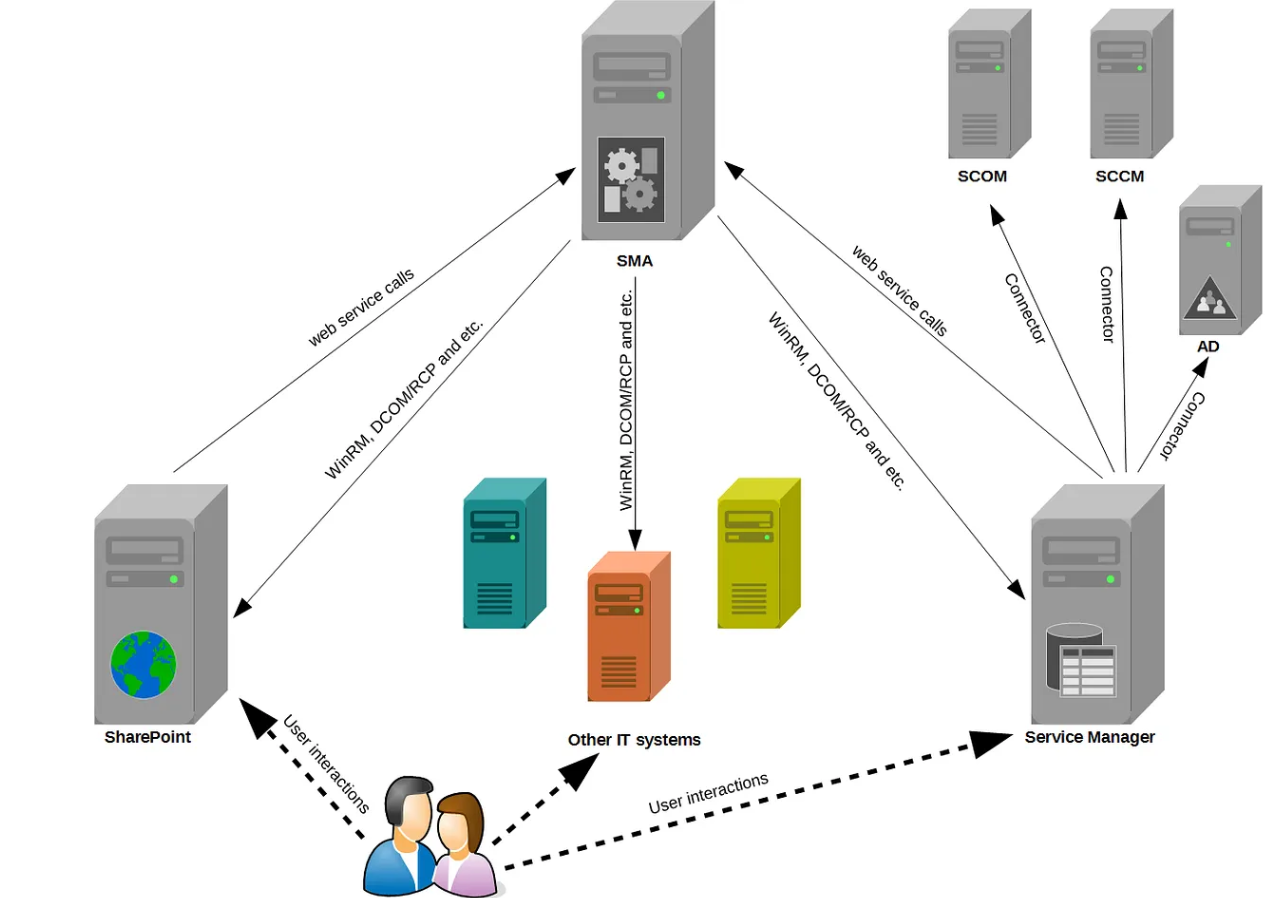
If you don’t want the VPN method, you can also consider using hosted intranet solutions like Google Workspace, SharePoint Online, etc. You can easily access these solutions through web browsers with proper authentication.
Pros
- Easy external access
- Automatic updates
- Scalable
- Mobile-friendly
Cons
- Ongoing subscription costs
- Data stored on third-party servers
- Limited customization
- Vendor lock-in
Method 3: Dedicated extranet portals
Best for: Organizations needing structured collaboration with external stakeholders
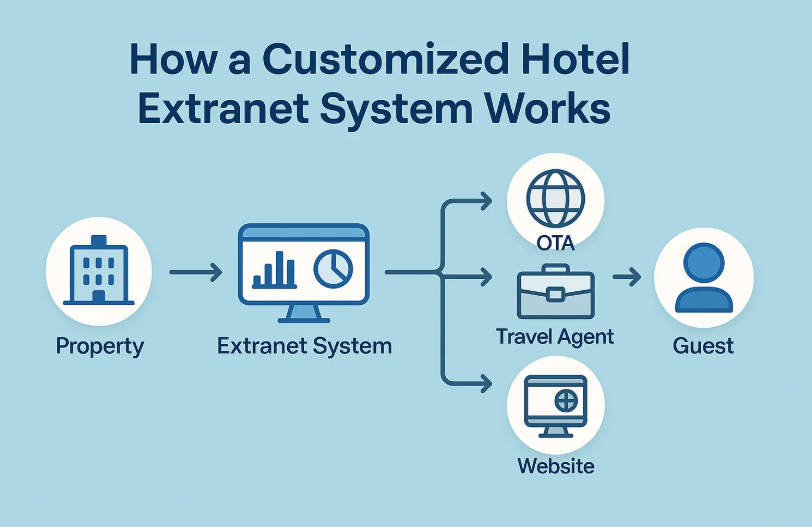
These are separate platforms especially developed with the external collaboration features. It is a private portal that allows limited access to people outside your organization. These extranet-focused features are built with the internal tools added only where needed.
Pros
- Purpose-built for external collaboration
- Granular access control
- Better UX than VPN
Cons
- Needs separate platform management
- Integration challenges with internal systems
Method 4: Reverse proxy solutions
Best for: Organizations with existing on-premise infrastructure needing secure external access
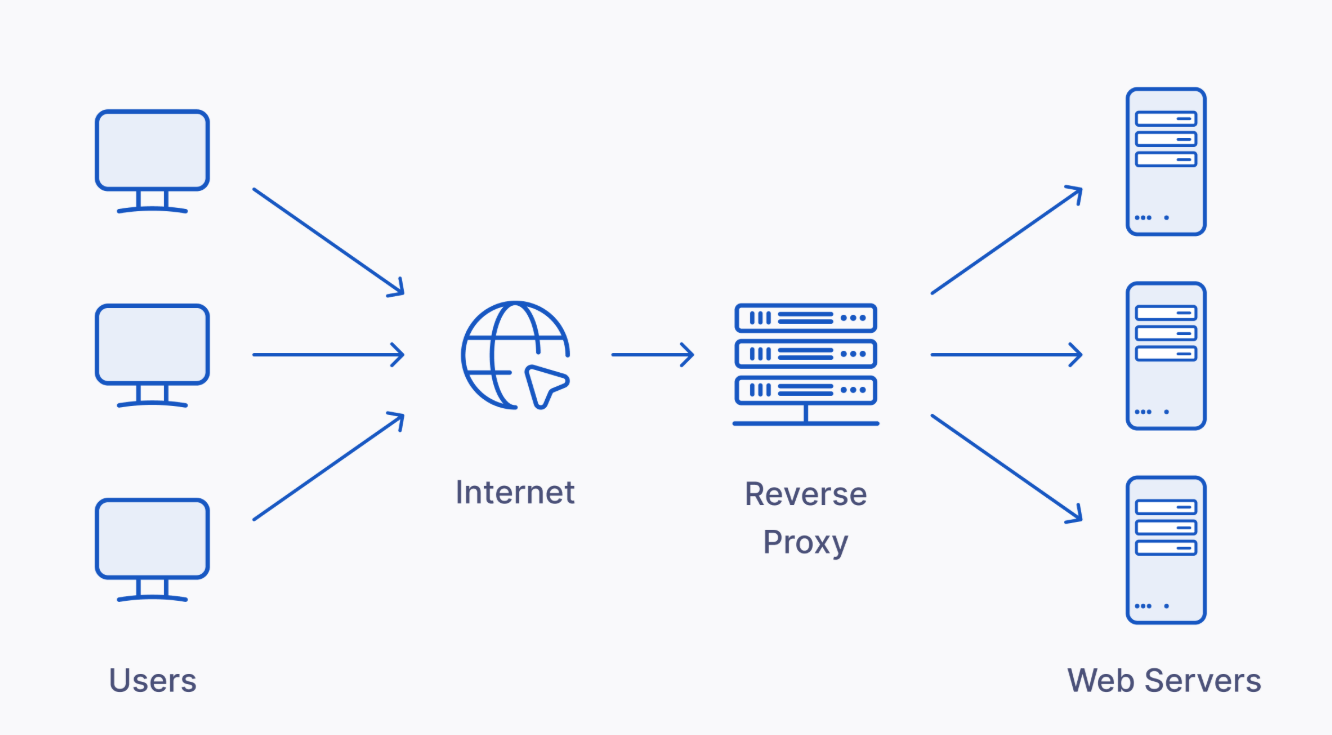
These proxy servers are intermediaries that forward external requests to internal servers while hiding the internal network structure. So, external users connect to a proxy server, which authenticates and routes requests to appropriate internal resources.
Pros
- Enhanced security
- Single entry point
- SSL termination
- Load balancing
Cons
- Requires technical expertise
- Additional hardware/software
- Complex configuration
Method 5: Remote desktop services (RDS)/ Virtual desktop infrastructure (VDI)
Best for: Contractors needing full application access with strict data control
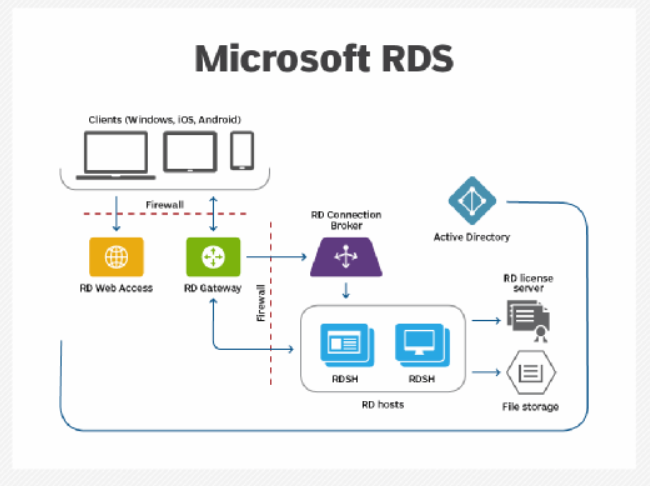
RDS, developed by Microsoft, provides shared desktops or published applications instead of individual machines. RDS turns your extranet into a controlled app-access platform, and not a full desktop.
Typical RDS-based extranet flow
- External user logs in via Remote Desktop Gateway
- RDS authenticates the user
- User gets:
- A shared desktop session, or
- Specific published applications
- Session ends → environment resets
VDI gives external users a full desktop environment that lives entirely inside your data center or cloud. As the data stays inside the virtual desktop, nothing is stored on the user’s personal device.
Typical VDI-based extranet flow
- A partner or contractor logs in via a secure gateway (VPN or web portal)
- The connection broker assigns them a dedicated virtual desktop (VM)
- They work inside that desktop:
- Internal apps
- File servers
- ERP / CRM systems
- When they log out, access can be:
- Persisted (same desktop next time), or
- Destroyed (for short-term contractors)
Pros
- Complete control over the user environment
- No data stored on user devices
Cons
- Expensive licensing
- High bandwidth requirements
- Limited to desktop applications
Method 6: API-based integration
Best for: B2B integrations and automated data exchanges
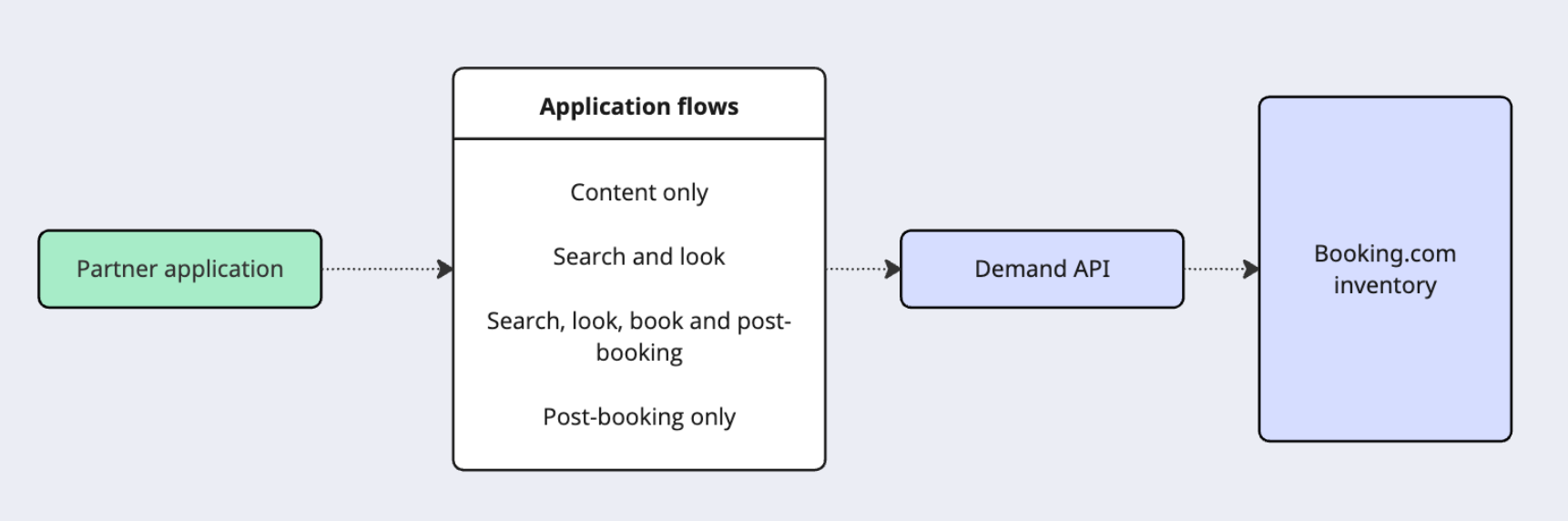
An Extranet API is a secure way for partner systems to connect directly to a company’s internal system without using a human-facing extranet portal. One of the best examples is the Trawex Extranet API, which works with travel agencies, tour operators, and booking platforms.
Pros
- Highly flexible
- Enables system-to-system integration
- Modern approach
Cons
- Needs development resources
- Ongoing maintenance
- Security complexity
- Accessible only to approved partner systems
Method 7: WordPress-based intranet/extranet themes (Woffice)
Best for: Businesses wanting self-hosted options, easy management, affordable intranet/extranet solutions, and unique workflows.
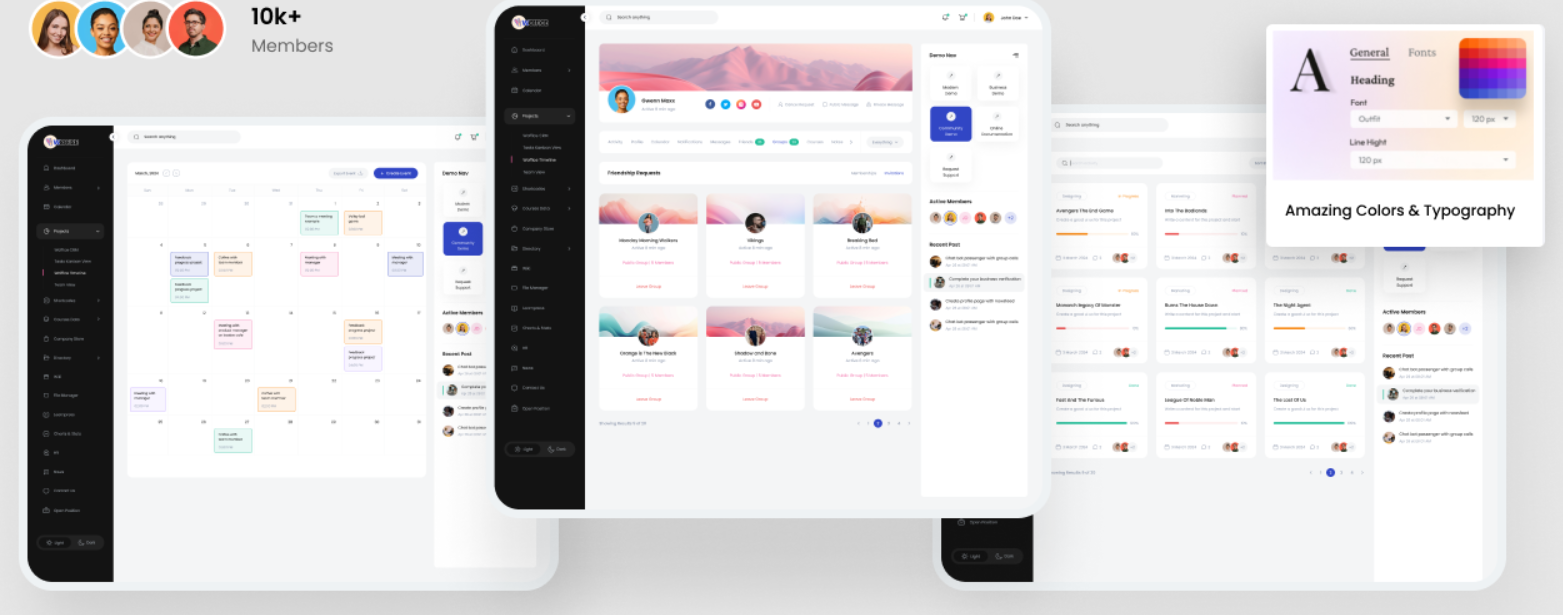
As WordPress-based solutions are built on the most popular CMS, it provides a unified, single installation system that manages both internal employees and external users. You can create specific roles for employees, contractors, clients, and vendors with personalized access levels. And, multipurpose WordPress themes like Woffice also come with team management, project management, CRM, HR management, and various other capabilities.
Pros
- Cost effective
- Ease of implementation & management
- Flexibility & customization
- Superior user experience
- Integrated collaboration features
- Security features
- Maintenance & support
- Rapid deployment
Cons
- Limited native mobile apps
- Compliance & audit challenges
- Needs regular updates (you can turn on auto-updates)
When Woffice/WordPress themes are the best choice
- Small to medium businesses (10-1,000 users) need an affordable intranet/extranet solution.
- Organizations with limited IT resources but basic technical capability.
- Companies require high customization for unique workflows.
- Businesses want data sovereignty with self-hosted options.
- Teams are already using WordPress for their website.
- Organizations need both internal and external collaboration on one platform.
- Budget-conscious companies are opting for more cost-effective licensing options.
- Startups and growing companies need flexibility to evolve.
- Organizations valuing open-source and avoiding vendor lock-in.
Comparing Woffice vs. other methods for building an extranet
| Method | Cost | Complexity | External UX | Customization | Maintenance | Security |
| VPN | Medium-high | High | Poor | Low | Medium | High |
| SaaS | High (recurring) | Low | Good | Medium | Low | High |
| Reverse Proxy | Medium | Very high | Medium | Low | High | High |
| VDI/RDS | Very high | High | Medium | Low | High | High |
| API-based | Medium | Very high | Good | Very high | High | Medium-high |
| Woffice/WordPress | Low | Low-medium | Excellent | Very high | Medium | Medium-high |
Security best practices you can follow with Woffice
Since you’re extending access beyond your internal network to external partners, customers, vendors, or clients, here are some of the best practices you should follow to ensure security.
Implement strong authentication mechanisms
- Install reputable MFA plugins like Two Factor Authentication, Wordfence Login Security, or WP 2FA
- Add MFA for all external users accessing the extranet
- Allow multiple MFA methods (authenticator apps, SMS, email codes)
- Practice strong passwords and password expiration policies
- Change the default WordPress login URL (wp-login.php) using plugins like WPS Hide Login
Role-based access control (RBAC)
- Create custom user roles for different external user types
- Implement content restriction plugins like Restrict Content Pro or Members
- Create separate areas or sections for internal-only content
Data encryption and secure communications
- Install and activate an SSL certificate (use Let’s Encrypt for free certificates)
- Update all internal links to use HTTPS
- Regularly renew and monitor certificate validity
- Encrypt sensitive files at rest using server-level encryption
- Change WordPress database table prefix from default “wp_.”
Regular updates and patch management
- Enable automatic updates for minor WordPress versions
- Test major updates in the staging environment first
- Subscribe to WordPress security mailing lists
- Update the Woffice theme promptly when new versions are released
- Remove unused/inactive plugins entirely
- Audit plugins quarterly for abandonment or security issues
- Use plugin vulnerability scanners like WPScan
- Keep the server operating system updated
Comprehensive security monitoring
- Install activity log plugins like WP Activity Log or Simple History
- Log all user logins, logouts, and failed attempts
- Enable real-time malware scanning
- Use security dashboards to monitor site health
- Implement uptime monitoring to detect DDoS or attacks
Secure backup and disaster recovery
- Schedule automated daily backups
- Store backups in multiple locations
- Maintain staging environment for restoration procedures
- Maintain a list of all plugins and versions
- Document custom configurations and settings
- Have a rollback plan for failed updates
Network and server security
- Implement WAF through security plugins (Wordfence, Sucuri) or CloudFlare
- Restrict PHP execution in upload directories
- Disable XML-RPC if not needed
- Hide WordPress version information
- Set proper file permissions (644 for files, 755 for directories)
Compliance and regulatory requirements
- Document user access policies
- Implement approval workflows for new user access
- Choose a hosting provider in an appropriate geographic location
- Use CDN with regional restrictions if needed
- Review third-party service agreements for data processing clauses
Third-party integration security
- Install plugins only from reputable sources (WordPress.org, ThemeForest)
- Check plugin last update date (avoid abandoned plugins)
- Restrict API access to specific IPs when possible
- Log all API access and monitor for abuse
- Disable unused API endpoints
- Use HTTPS for all API communications
- Review third-party integration security regularly
Mobile and remote access security
- Educate users about mobile security (public WiFi risks, etc.)
- Monitor for suspicious mobile access patterns
- Mandate HTTPS across the entire site
Documentation and security policies
- Document acceptable use policies for external users
- Define password and authentication requirements
- Define roles and responsibilities for security
- Create external user agreement/terms of service
- Implement a change approval process for production
- Use a staging environment for testing all changes
- Document all configuration changes
Implementing an extranet solution with Woffice
To build a fully functional extranet with Woffice, the Plus v6 plan is an ideal solution. It includes advanced project management tools, premium add-ons, CRM integration, HR management features, and the Celestial skin for a modern interface. With Plus v6, you can manage external users, control access with roles and permissions, and provide a branded experience without buying add-ons separately. It’s a complete solution designed for scalable intranet and extranet use.
Your questions, answered
Can we use Woffice for both the intranet and extranet?
Yes, Woffice is equipped with both the intranet and extranet features in a single WordPress theme. Consider using its intranet-focused and extranet-focused addons to access your desired features.
Will intranet and extranet content get mixed up?
No, as the content is role-based, each user gets a customized view based on their access level. Employees only see internal content, while external users see only what’s assigned to them.
Is Woffice mainly an intranet theme?
Woffice is not limited to intranets. It’s a multipurpose e-learning or community workspace theme that supports client portals, partner hubs, and member-only extranets just as effectively.
Why build an intranet and an extranet together instead of using separate tools?
Using one platform reduces complexity. You manage users, content, and permissions in a single system, which gives a more consistent experience for everyone.
Is Woffice secure for external users?
Yes. Woffice supports login-only access, private pages, role-based permissions, and restricted groups. Nothing is visible unless you explicitly allow it.
Can external users see internal company data with Woffice?
No. External users can only access content assigned to their role or group. Internal documents, discussions, and other restricted content remain completely private.
Will it be difficult to manage both the intranet and the extranet?
No, it’s easy, as everything is managed from a single, unified dashboard. You’re only required to set the roles and permissions to simplify the management. Once it’s done, everything else is almost sorted.
Can the platform scale as we add more clients or partners?
Yes. You can add unlimited users, groups, and private spaces. Woffice scales with your organization. You can choose to buy bundle addons for more savings and multisite access.
Will the Woffice extranet look professional for clients?
Yes, the extranet can be fully branded with your logo, colors, and layout, so clients experience it as a dedicated, professional portal.
What if we only need an intranet or only an extranet later?
That’s completely fine! You can simply remove or add the related addons from Woffice to build your desired intranet/extranet platform. It is highly flexible and can be reshaped without rebuilding.